
Interactive Dining
Smarter ordering for guests, clearer numbers for owners.
- Faster, safer ordering for every guest.
- Recommendations by mood, history, popularity and price.
- Reorders, refills and table requests in a tap.
- A dashboard that shows which dishes earn their place.
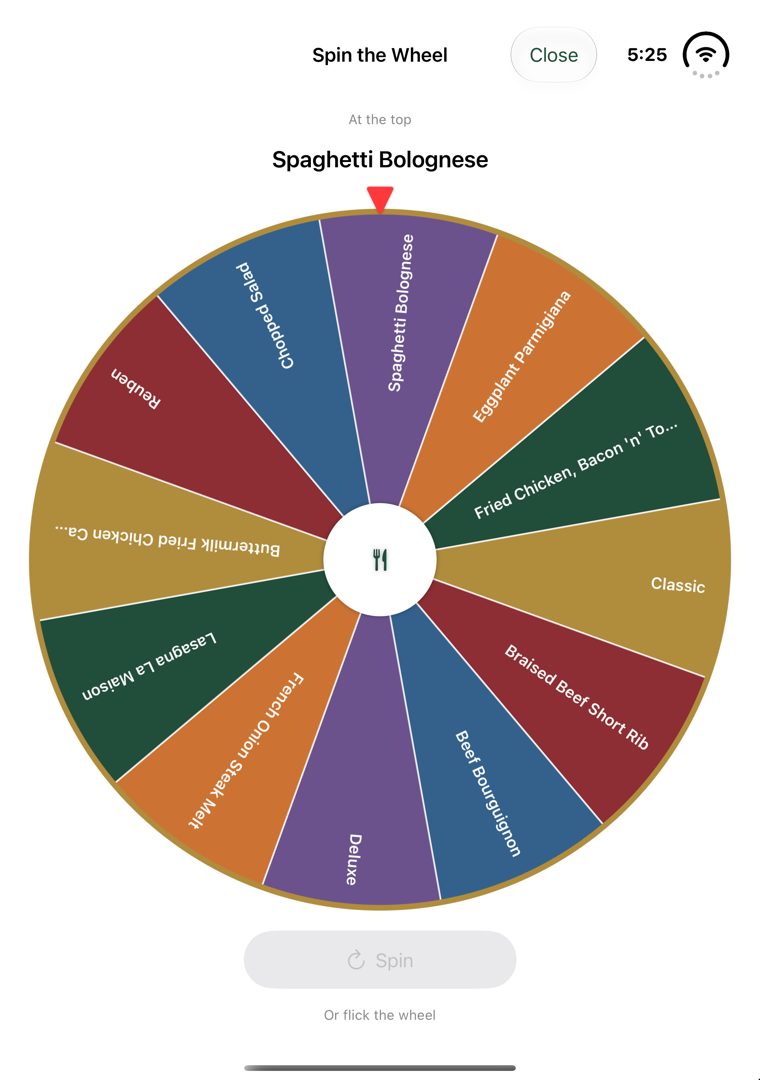
Your menu, turned into a guide.
Interactive Dining puts your menu on the guest's phone or a table device. It filters out what a guest can't or won't eat, suggests what suits them, and sends the order straight to your team with the table number attached. Behind it, your dashboard keeps the menu current and shows which dishes make money.
Faster ordering
Guests pick from a short, relevant list and tap Order. It reaches the kitchen instantly with table number, quantity and notes.
Built-in allergen safety
Guests declare allergies before browsing. Anything that contains, or may contain, those allergens is removed from every recommendation.
Dislikes respected
Spicy, mushrooms, okra, even colours like “yellow”: likely matches are left out, with a list of what was hidden and why.
Recommendations that sell
Popular, Specials, Previous Orders, Price Range, Mood, Surprise Me or the Spin Wheel. Your best sellers and specials get seen.
Effortless reorders
Another round, another coffee, a free refill, water for the table: one tap, routed to your team with the table number.
An owner's dashboard
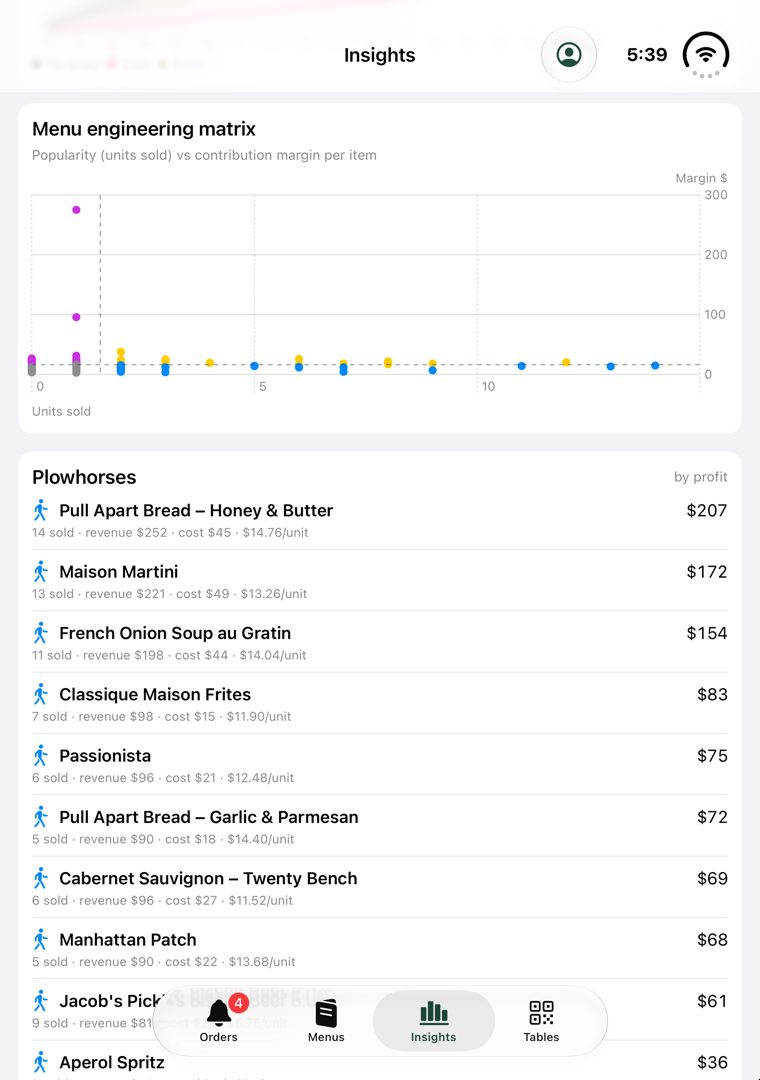
Live orders, AI menu uploads, costs and specials, table QR codes, and Stars, Plowhorses, Puzzles and Dogs.
From table to order in a few taps
- 1Find the restaurantSearch by name, street or city, or scan the QR code on the table.
- 2Set the tableThe table QR sets it automatically, or guests type a table number.
- 3Share preferencesAllergies (required), plus optional dislikes and moods, saved for next time.
- 4Pick a categoryAppetizers, Mains, Sides, Desserts, Drinks, for Breakfast, Brunch, Lunch or Dinner.
- 5ChoosePopular, Specials, Previous Orders, Price Range, Mood, Surprise Me, or let the Spin Wheel decide.
- 6OrderConfirm quantity and a kitchen note. The guest sees Sent → Preparing → Served.
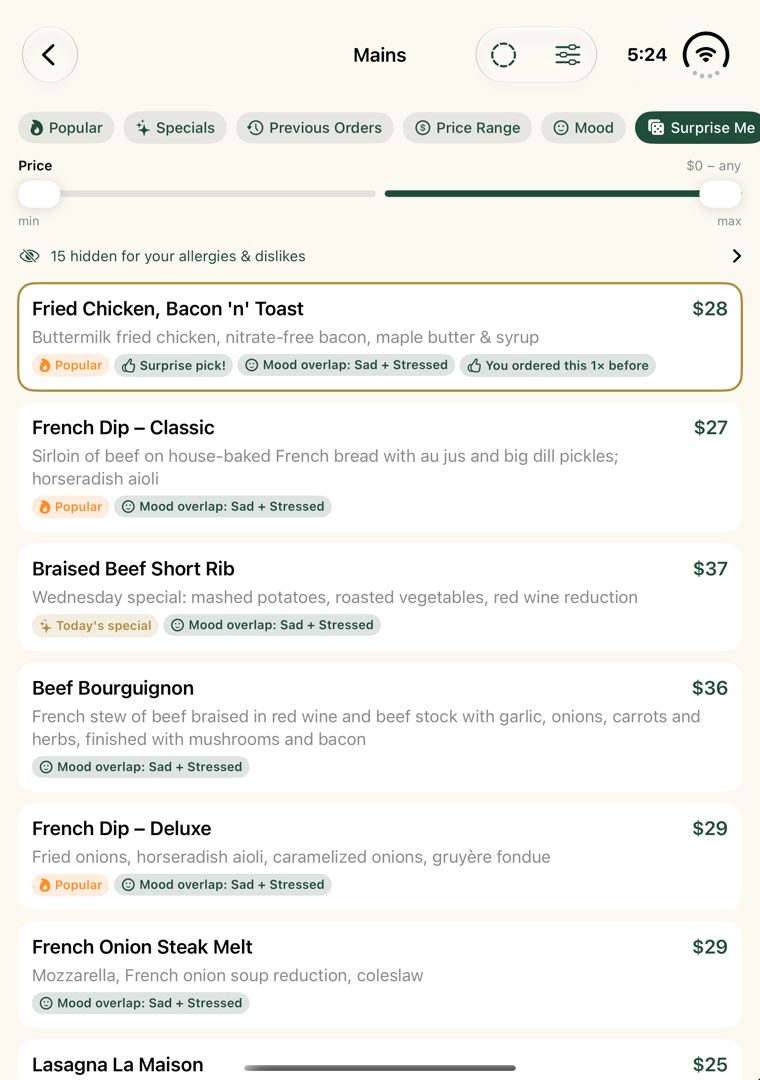
Allergens and dislikes, handled before the order.
When a menu is uploaded, AI reads every item and records its likely ingredients, the allergens it contains and may contain, its flavours and its colours. Staff can review every item in the dashboard.
Allergen data is AI-estimated from the menu text and should be reviewed by your kitchen. The app is designed to reduce risk and start the conversation, not to replace your allergen procedures.
Mandatory allergy step
Guests choose their allergies, or confirm they have none, before they see recommendations.
Conservative exclusion
Dairy, eggs, fish, shellfish, nuts, gluten, soy, sesame and more, plus custom allergies such as kiwi.
Cautions for everyone
“Contains” and “May contain” alerts on each dish and at checkout.
Transparent
A “hidden for your allergies & dislikes” list shows each removed dish and why.
Reorders, refills and table requests in a tap.
Another drink, a coffee, a refill, a fork, water for the table, the bill. Requests arrive itemised, “2 × Glass of water, Steak knife, Check, please”, so one trip covers the whole table.
See which dishes earn their place.
A PIN-protected dashboard with tabs for orders, menus, insights and tables. Every item is placed on two axes: how popular it is, and how much profit each sale contributes.

How AI Menus Reinvent Restaurant Dining
A 23-minute listen on how AI menus are changing restaurant dining.
Up and running in six steps
1 Register
Your restaurant's name, street and city, and an owner PIN.
2 Upload menus
A PDF, photo or text for each service. Review the AI's categories, allergens and specials.
3 Set costs
Plate and pour costs for your main sellers, so margins are accurate.
4 Mark specials
Daily or weekday specials, and dishes to feature as popular.
5 Print table QRs
One code per table, from the Tables tab.
6 Open the Orders tab
Keep a device at the pass with notifications on.